If you tried to issue a partial refund from WooCommerce's Refund button on an order paid through Charge at checkout or Hold and charge later, and you saw the message "Partial refunds are not supported for this payment type. Please refund the full amount.", this article is for you.
The good news: partial refunds absolutely work. They just live in a different panel on the order page than the one most people try first. This article explains why, and how to do it.
Two payment flows, one order page
WeeConnectPay supports two ways of recording payments with Clover, and that's the root of the small UX wrinkle you're running into. The two flows are visible in the Transaction Mode dropdown under WooCommerce → Settings → Payments → WeeConnectPay.
Direct Charges (Charge at checkout, Hold and charge later)
Your order is paid with one Clover charge that covers the whole cart, with a short text summary of what was purchased. There are no individual line items on Clover's side; the charge is a single number with a description.
This is what we recommend for most stores. It's what our newer integrations (Zoho, PrestaShop) use by default, and it's where new feature work lands first.
Order and charge (the older WooCommerce flow)
Every cart line becomes a separate line item on a Clover order, with shipping as its own line. The Clover order is then paid.
We keep supporting this flow because some merchants depend on it. If your Clover account drives an in-store order printer (kitchen tickets, packing slips), or you use Clover-side inventory and need each line to register against stock, you need the per-line-item breakdown that only Order and charge provides. We don't want to pull the rug on those workflows.
Why partial refunds behave differently
WooCommerce ships with its own refund interface, the one you reach by clicking the Refund button at the bottom of the Order items table. That interface was built around the line-by-line model: select an item, set a quantity to refund, and the amount populates from the item price.
That model maps cleanly onto Order and charge, but on Direct Charges there are no line items to refund against, just one charge for the whole cart. WooCommerce's button can only handle full refunds against that charge today, and a partial amount entered there is what triggers the Partial refunds are not supported message.
Unfortunately we can't change the wording of WooCommerce's Refund button (WooCommerce owns that UI and doesn't expose a per-gateway hook), so the error message doesn't point you to the right place.
Partial refunds on Direct Charges live in the WeeConnectPay Charges metabox on the same order page, not in WooCommerce's Refund interface.
How to issue a partial refund on a Direct Charges order
Step 1. Open the order. In your WordPress admin, go to WooCommerce → Orders and open the order you want to refund.
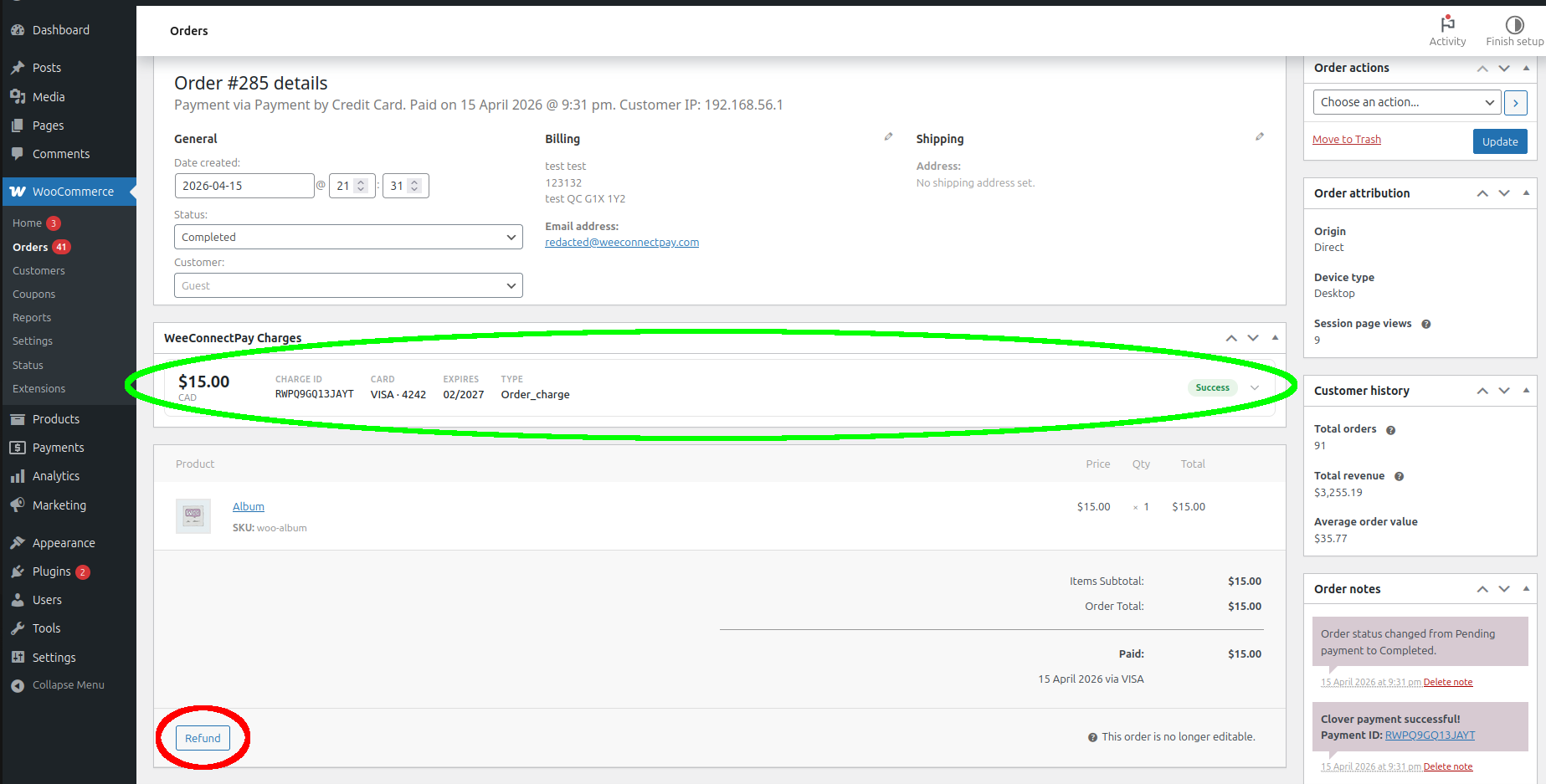
Step 2. Find the WeeConnectPay Charges metabox. On the order edit page, scroll to the panel circled in green in the screenshot below. This is where charge-level refunds live, including partial ones. The WooCommerce Refund button at the bottom of the order items table (circled in red) is the one that produced your "Partial refunds are not supported" error, so ignore it for partial refunds.
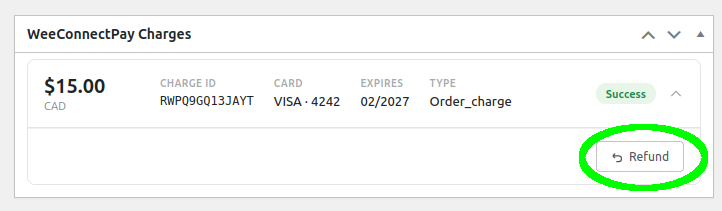
Step 3. Click Refund on the charge card. In the WeeConnectPay Charges metabox, find the charge for the payment you want to refund, then click its Refund button.
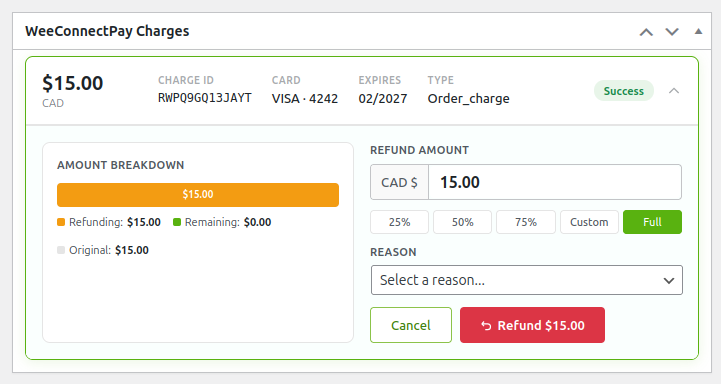
Step 4. Enter the amount, pick a reason, confirm. The refund form expands inline. Enter the partial amount you want to refund (or click one of the quick presets: 25%, 50%, 75%, Custom, Full), pick a reason, and click the red Refund $X button. The amount input defaults to the remaining refundable balance, so you can issue further partial refunds against the same charge as needed until the charge is fully refunded.
Step 5. Confirmation. After the refund is processed, the charge card updates in place to show the partial refund and the remaining balance. A note is added to the order timeline as well.
That's it. You can repeat the process to issue additional partial refunds against the same charge until the total refunded equals the original charge amount.
What if I'm on Order and charge instead?
If your store is on the older Order and charge mode, refunds work through WooCommerce's Refund button at the bottom of the order items table, with line-item granularity. The behavior is different from Direct Charges and has its own constraints (partial refunds on Order and charge are limited by Clover's API). The full picture, including the partial-refund block, the gift card case, and the workarounds, is in Refunds on Order and charge. If you're still stuck on a refund, please email support@weeconnectpay.com and we'll help.
Switching from Order and charge to Direct Charges
If you don't depend on Clover-side per-line-item features (order printer, kitchen tickets, Clover inventory), Direct Charges is simpler and more flexible. You can switch under WooCommerce → Settings → Payments → WeeConnectPay → Transaction Mode. The change applies to new orders only; existing orders keep the flow they were placed under, so refund behavior on past orders doesn't change.
If you do depend on Clover-side line items, stay on Order and charge. The choice is about fit, not hierarchy.