Money goes back to a customer in one of three shapes, and which one applies depends on what state the payment is in and which transaction mode took it. This article covers all three, and which panel on the order page to use for each.
The three shapes
| Shape | When it applies | What the customer gets back |
|---|---|---|
| Refund | The payment was captured. The money already moved. | The amount you refund, back to the card that paid. You can refund the full amount or part of it. |
| Void | The payment is a hold from Hold and charge later that you never captured. No money moved. | The hold is released in full. A void always covers the whole hold. |
| Return | The order was taken on the Order and charge transaction mode, where every cart line is its own line on the Clover order. | Whole line items at their full price. |
You do not have to work out which one to trigger. When you refund a hold that was never captured, it is processed as a void automatically, and the panel reports it back to you.
Refunding a direct charge, in full or in part
This is the path for the Charge at checkout and Hold and charge later transaction modes, where the order is paid with one charge covering the whole cart.
Step 1. Open the order. In your WordPress admin, go to WooCommerce → Orders and open the order.
Step 2. Find the WeeConnectPay Charges panel. It sits on the order edit page, circled in green below. Charge-level refunds live there, including partial ones. WooCommerce's own Refund button at the bottom of the order items table, circled in red, is built around line items and handles full refunds only on these transaction modes.
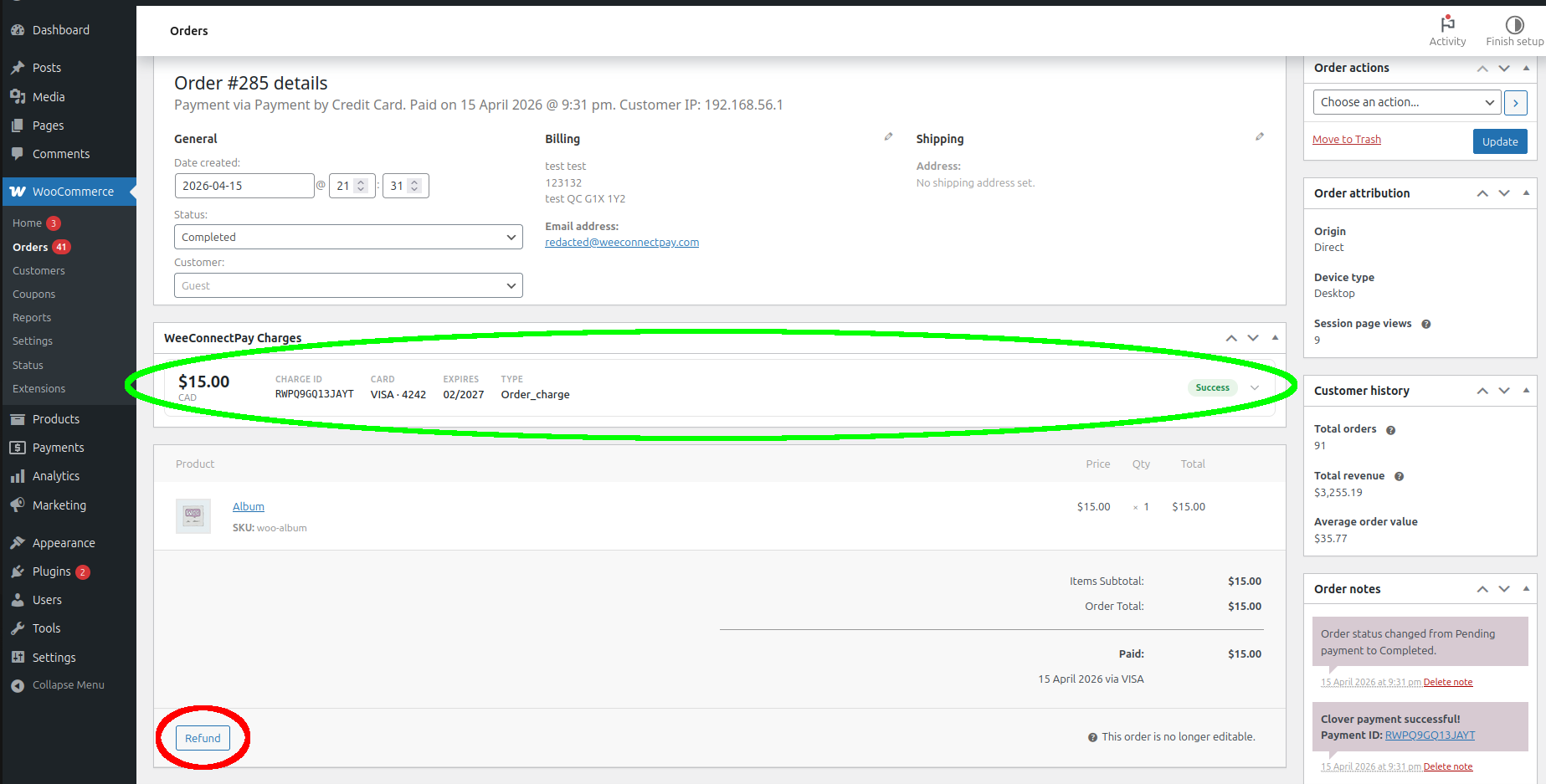
Step 3. Open the charge and click Refund. Each charge card in the panel carries its own Refund button. On a hold you have not captured, the same button reads Void instead.
Step 4. Set the amount, pick a reason, confirm. The form expands inline. It shows an amount breakdown of what is being refunded against what remains, an amount field, quick presets for 25%, 50%, 75%, Custom and Full, and a reason selector. The amount defaults to the remaining refundable balance.
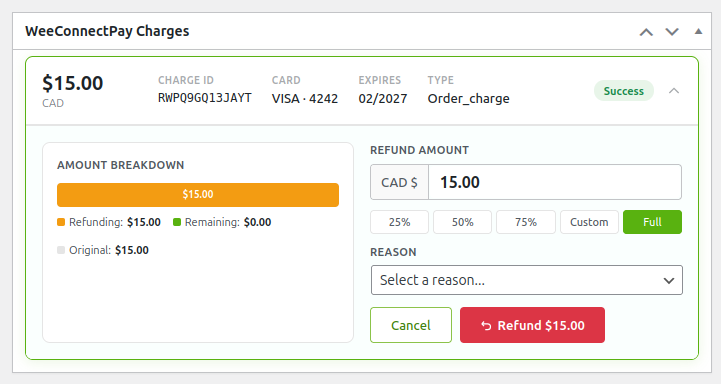
Step 5. Read the result. The charge card updates in place with the refunded amount and the remaining balance, and a note is added to the order timeline.
Partial refunds add up. You can refund the same charge several times until the total refunded equals the original amount. Once part of the charge is already back, the button on the charge card reads Refund More. Your dashboard shows the charge as Partially Refunded along the way and Refunded once the whole amount is back.
One case has a timing constraint. On a hold you took with Hold and charge later and then captured, a partial refund may only be available once Clover's daily batch has been closed out. The refund form tells you so when you set a partial amount on a captured hold. If a partial refund there is declined, a full refund goes through, or you can try the partial amount again after the batch closes.
If you reached this article from WooCommerce's own "Partial refunds are not supported for this payment type" message, Partial refunds on Direct Charges covers that message specifically.
Returns on Order and charge
On the Order and charge transaction mode, the Clover order carries every cart line separately, with shipping as its own line, and refunds operate on those lines through WooCommerce's Refund button at the bottom of the order items table.
Lines are returned whole, at the price they were sold for. Set the Qty field first and let the price populate itself: editing the price field directly produces an amount that does not match the line, and the request is rejected.
For an amount that does not correspond to whole lines, you have two options that do work:
- Refund a whole charge from the WeeConnectPay Charges panel on the order page.
- Process the amount you want in your Clover account. A refund made there does not travel back into your store, so update the order there afterwards to keep your records straight.
Clover tracks return state per line. A line that was already returned or exchanged cannot be returned again, so check what already went through for that order before retrying.
More on the blocked cases on this mode, including the messages you see, is in Refunds on Order and charge.
Returning lines on a payment that has not settled yet
Clover settles payments in a batch and closes that batch out on its own schedule. A line-item return sent on this mode against a payment still sitting in an open batch can come back as a full void of the payment rather than a return of the lines you picked.
Nothing is lost when that happens and nobody is charged twice, but the whole sale comes back instead of the part you selected. After a return on a same-day order, read the charge card and the order notes to see what actually went back. If the whole payment came back and the customer is keeping part of the order, take a fresh payment for the amount they are keeping.
Orders paid with more than one payment
When an order was paid with two payments, for example a gift card plus a regular card, two charges exist for one order. A line-item refund cannot decide which of the two to draw from, so refunds for those orders run through the WeeConnectPay Charges panel: refund each charge in full, one at a time.
Fees on refunds
A refund is its own billable action on your plan. The WeeConnectPay per-transaction fee applies to the refund, and the fee charged on the original sale stays as it was. A sale that is later refunded therefore carries two per-transaction fees. WeeConnectPay fees on your Clover statement has the amounts per plan.
Payments recorded with a custom tender, such as a gift card or store credit, carry no WeeConnectPay per-transaction fee, on the sale or on its refund.
If a refund does not go through
If a refund times out or you are unsure whether it landed, open the order and read the charge card before trying again: it carries the refunded total for that charge, so you can tell whether the first attempt went through.
If the amount has not changed and the refund still will not go through, email support@weeconnectpay.com with the order number, the amount, and the time of the attempt.