When something in WeeConnectPay isn't working as expected (a payment failing, a refund being rejected, an unexpected error message), the single most useful thing you can send our support team is a debug log. It records exactly what your store and our servers exchanged with Clover, so we can pinpoint the cause instead of guessing.
This article walks you through enabling Debug Mode, reproducing the issue so it's captured, downloading the log, and sending it to us.
Before you start
You'll need:
- Access to your WordPress admin as a user with the Manage WooCommerce capability (usually a Shop Manager or Administrator).
- The order number (or a clear description of what you were doing) for the issue you want to report.
The debug log is meant for our support team. It contains information specific to your store and your customers, so please send it to us by email rather than posting it on a public forum.
Step 1. Turn on Debug Mode
- In the WordPress admin, go to WooCommerce → Settings → Payments → WeeConnectPay.
- Open the Advanced tab. The settings are organised across four tabs (Payments, Taxes, Inventory, Advanced), and Debug Mode lives under Debugging on the last one.
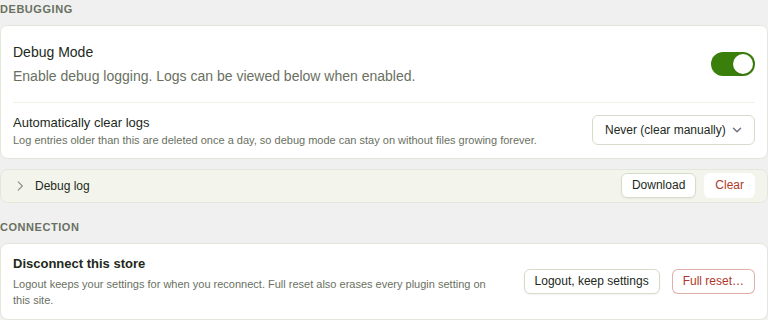
- Turn on the Debug Mode toggle. It saves on its own the moment you flip it, and a Saved marker appears to confirm it. There is no separate save button on this page.
Step 2. Reproduce the issue
Go back to your store and trigger the same action that produced the problem (place the order, attempt the refund, etc.). The failure now gets captured in the debug log with full detail.
If you can't easily reproduce the issue, that's okay. Send us whatever log you have along with the timestamp and order number, and we'll work from there.
Step 3. Download the log
- Return to WooCommerce → Settings → Payments → WeeConnectPay and open the Advanced tab.
- Find the Debug log panel, just under the Debug Mode toggle. It only appears while Debug Mode is on, so if you don't see it, check the toggle first.
- Click Download. Your browser saves a text file containing the logs.
The Clear button next to Download wipes the on-disk log and asks you to confirm first, because it cannot be undone. You don't need it for a normal support request, but it's there if you want a clean slate before reproducing a fresh issue.
Step 4. Send the log to support
Email the downloaded log file to support@weeconnectpay.com along with:
- The order number (or a description of what you were doing).
- What you expected to happen.
- What actually happened, including any error message you saw on screen.
Our AI triage agent replies first and asks any follow-up questions needed. A member of our team also reviews every ticket. With the log attached, most issues get diagnosed in the first reply rather than after several rounds of back-and-forth.
Should you leave Debug Mode on all the time?
Generally no. Debug Mode is intentional verbosity for troubleshooting. Once your issue is resolved, turn the toggle off so your logs stay focused and your server isn't writing extra entries on every payment.
If you're actively chasing an intermittent issue, leaving it on for a few days is fine. The Automatically clear logs setting, just under the Debug Mode toggle, is there for exactly that: pick After 3 days, After 1 week, or After 1 month and older entries are deleted once a day, so the log files don't grow without limit while you wait for the problem to happen again. It starts at Never (clear manually).