Each time WeeConnectPay acts on an order, it writes a note on that order. A payment, a hold, a capture, a refund, a fraud check and a tax or inventory warning each leave one. When a customer says they paid, when a payment failed, or before you refund, the note is the first place to look.
Open WooCommerce → Orders, click the order, and read the Order notes panel on the right of the page. The newest note is on top, and each one carries its date and time.
The notes are private. Your customer never sees them, in their account or in WooCommerce's emails. They are stored on the order in your own store, so they stay there when you deactivate, delete or reinstall the plugin.
Why they matter
They say what happened, in the moment. When a payment fails, the note carries the reason and the error code. There is no need to reproduce the problem or guess.
They tie the order to Clover. The payment note carries the references your Clover account and the card issuer use, which is what you need to find the payment in Clover or answer a chargeback.
They warn you before you act. Some notes tell you not to refund again, or to check Clover before asking the customer to pay a second time. Reading them first is how you avoid refunding twice or charging twice.
They make support fast. Copy the note into your email to support@weeconnectpay.com with the order number, and we can usually tell you the cause without asking you anything else.
What a payment note carries
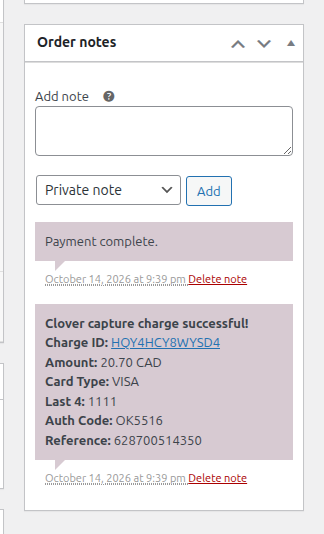
A successful payment leaves a note whose first line names the mode that took it: "Clover capture charge successful!" on Charge at checkout, "Clover pre-authorization charge successful!" on Hold and charge later, and "Clover payment successful!" on Order and charge. The lines that follow are the same on every mode.
| Line | What it is for |
|---|---|
| Charge ID (or Payment ID on Order and charge) | Clover's ID for the payment. It is a link: click it to open the Clover receipt. |
| Amount | What was charged, with its currency. |
| Card Type and Last 4 | Which card paid, so you can confirm it with the customer without seeing the full number. |
| Auth Code | The approval code the card issuer gave. Keep it for disputes. |
| Reference | Clover's reference number, the one to quote when you look the payment up in Clover. |
| 3-D Secure | With 3-D Secure on, whether the customer's bank verified the card. "Protected: liability shifted to issuer" means a fraud chargeback on this payment is the issuer's to absorb, not yours. |
What a failed payment looks like
A payment that did not go through leaves a note that starts with "Clover payment failed.", then says in plain words what stopped it and whether your store had anything to do with it. Below that come the Error code, the Decline code when the card issuer refused, and Clover error message, which is the processor's own wording.
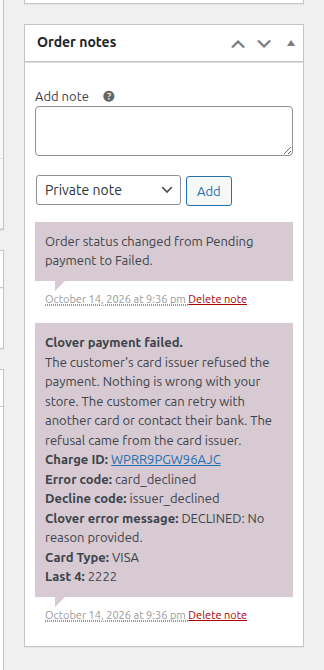
Most failures are the customer's card, and the note says so: "The customer's card issuer refused the payment. Nothing is wrong with your store." The customer can retry with another card or call their bank. For the codes and what each one means, see Declined payments.
Notes that ask you to act
Most notes need nothing from you. These do:
| The note starts with | What to do |
|---|---|
| "Clover pre-authorization charge successful!" | The money is held, not taken. Capture it from the WeeConnectPay Charges panel when you ship. |
| "Refund outcome could not be confirmed." | Look the charge up in your Clover dashboard before refunding again. A second refund would return the money twice. |
| "The Clover refund succeeded, but WooCommerce could not record it." | The money is already back with the customer. Do not refund again; add the refund line on the order by hand so your totals match Clover. |
| "3-D Secure verification could not be completed. The outcome is unknown" | Check the charge in your Clover dashboard before asking the customer to pay again. |
| "A previous attempt to create the Clover order did not complete." | Look in Clover for a duplicate unpaid order and delete it. No money moved on the interrupted attempt. |
| "Warning: Please note that the billing ZIP/Postal code" | The billing postal code does not match the card's. Review the order before you ship it. |
| "According to your plugin settings for Google reCAPTCHA, the customer who paid for the order is NOT likely a human being." | The order was cancelled. If it was a real customer, lower the Minimum Human Score Threshold in the plugin settings. |
| "Tax rate link mismatch detected." | The payment and its tax are correct. Relink the rate on the Taxes tab so Clover reports it by name again. |
Your dashboard's Transactions page explains a payment that did not go through in the same words as its order note, for every store you have connected. The full list of notes, with what each one means, is in Error messages: what each one means and what to do.